OpenData
1. Introduction
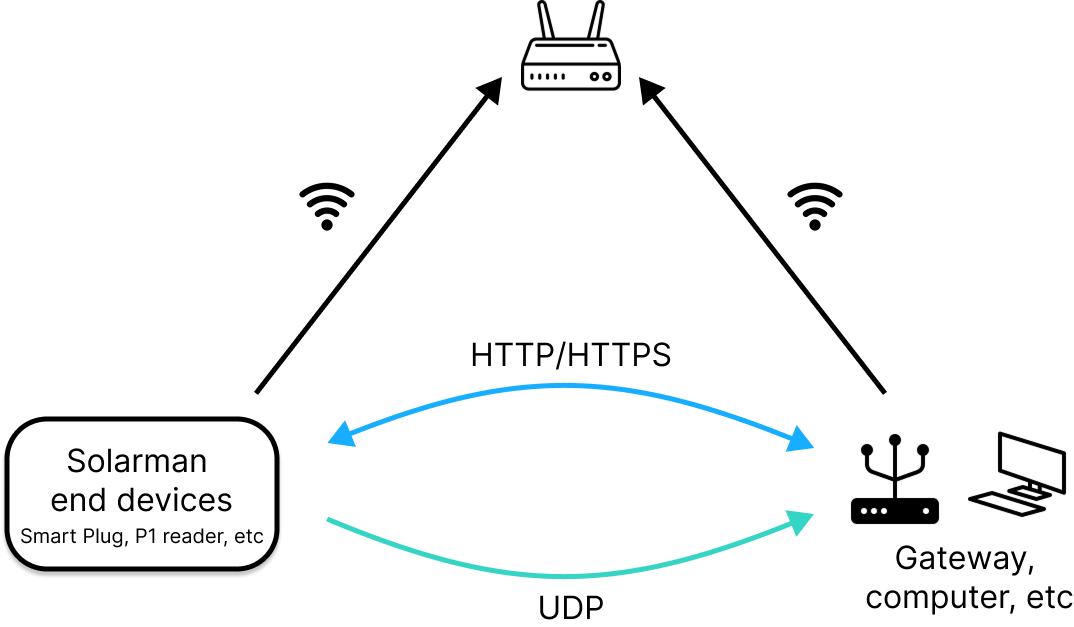
OpenData is a lightweight communication framework designed for WiFi-based Solarman IoT devices (such as smart plug, meters, P1 readers, etc.). Devices connect to the local network via WiFi, supporting both data push and external query response mechanisms.
Core Features
- Device Data Acquisition: Real-time retrieval of device basic information (model, firmware version, etc.) and measurement data.
- Device Configuration Update: Dynamic adjustment of device parameters and settings.
Use Cases
-
Push Device Data (UDP)
- UDP broadcast to
255.255.255.255 - Device Key Encrypted: UDP broadcast to
255.255.255.255(Coming soon)
- UDP broadcast to
-
Receive External Query Requests (HTTP/HTTPS)
- HTTP
- HTTP + Digest
- HTTPS (Coming soon)
2. Preparation
2.1 Install Tools
- For receiving UDP broadcasts: Any network debugging tool (such as NetAssist) can be used.
- For sending HTTP requests: The Postman GUI tool or the cURL command-line tool can be used.
2.2 Enable API
Device API functionality is disabled by default and must be manually enabled before use.
2.3 Obtain IP Address
Choose one of the following four methods:
- Query via router admin interface
- View device details in Solarman Smart APP
- Check device info in Energy Ease
Obtain IP via UDP broadcast
-
Ensure the device and computer are on the same LAN.
-
Open the network debugging tool.
-
Select UDP protocol.

-
Select Local Host Address.

-
Set Port to 10000.

-
Click Open.

-
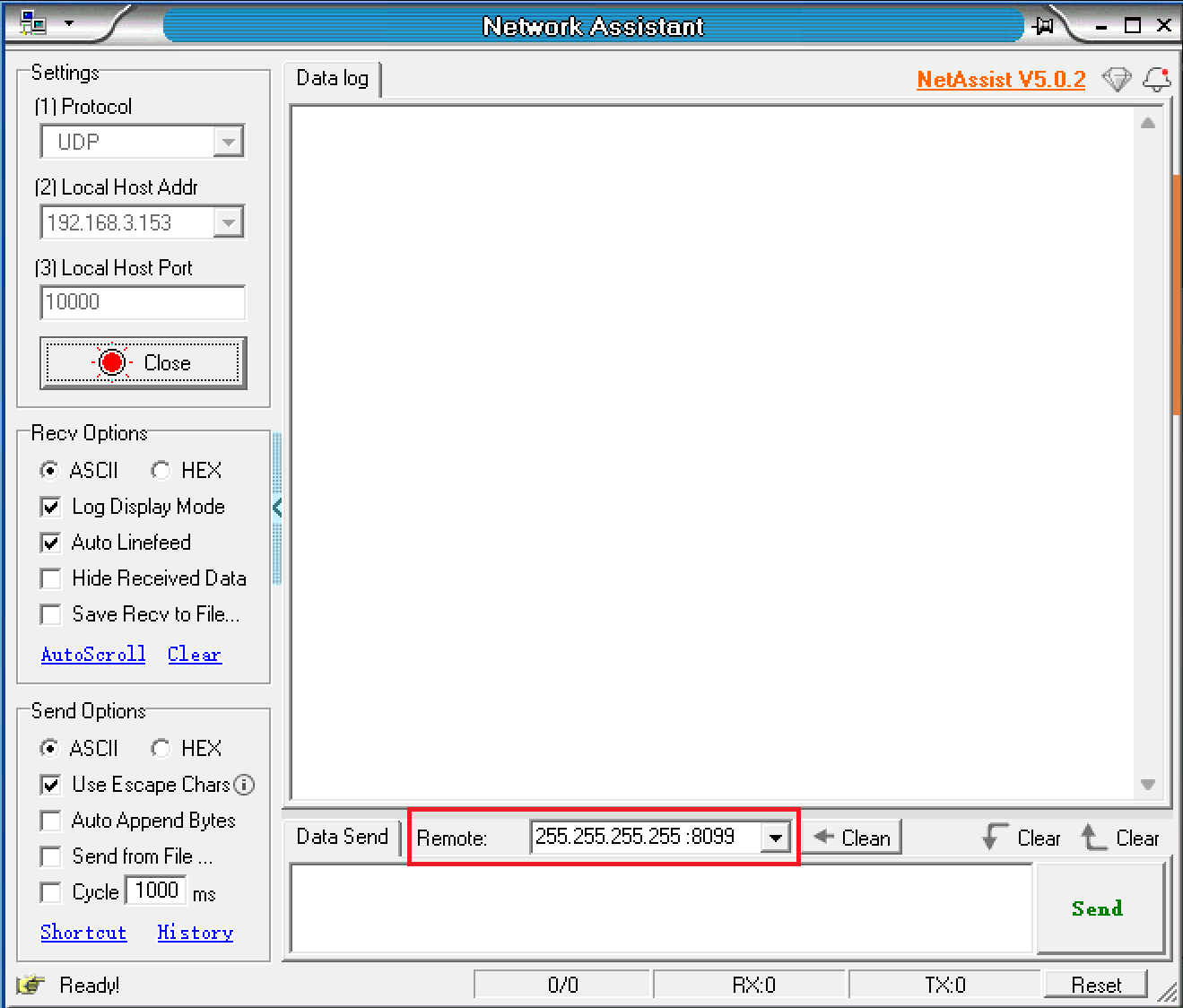
Set remote host to broadcast address: 255.255.255.255:8099.
-
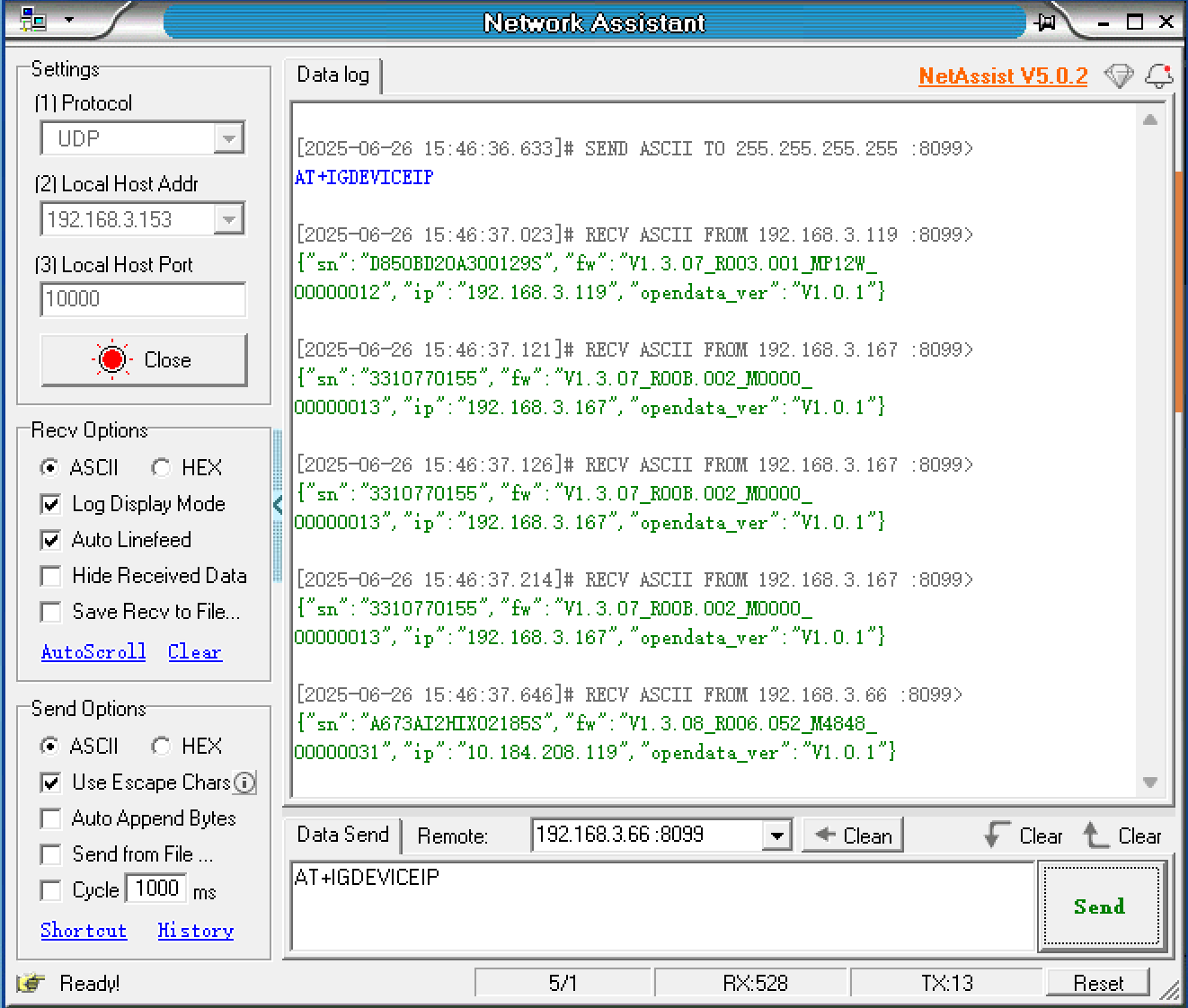
Enter AT command in message box: AT+IGDEVICEIP.

-
Click Send.
-
Solarman devices on the same LAN will reply with their IP and SN.
2.4 Check Firmware Version
To confirm whether the firmware version of the device meets the requirements based on the device model, you can view the firmware version information through any of the following methods:
- Go to SOLARMAN Smart / Energy Ease App and check device info.
- Send HTTP request and call Sys.GetConfig to get configuration info.
| Device | Model | Firmware Version (Minimum) |
|---|---|---|
| P1 Meter Reader | P1-2W | V1.3.0A_R003.001_MP12W_00000013 |
| Smart Plug | SP-2W-EU | V1.3.0A_R002.001_MSP2W_00000010 |
| Smart Meter | MR1-D5-WR MR1-D5-W | V1.3.0A_R00B.032_M051A_00000015 |
| MR1-D4-WRE MR3-D4-WRE MR1-D4-WE MR3-D4-WE | V1.3.0A_R009.002_M0000_00000016 | |
| MR1-D3-W MR3-D3-W | V1.3.07_R00A.002_M0515_00000017 | |
| IR Reader | NIR-1 NIR-3 | V1.4.01_R016.052_M0000_00000013 |
3. UDP Usage Guide
Enable Functionality
UDP is disabled by default and must be manually enabled.
UDP
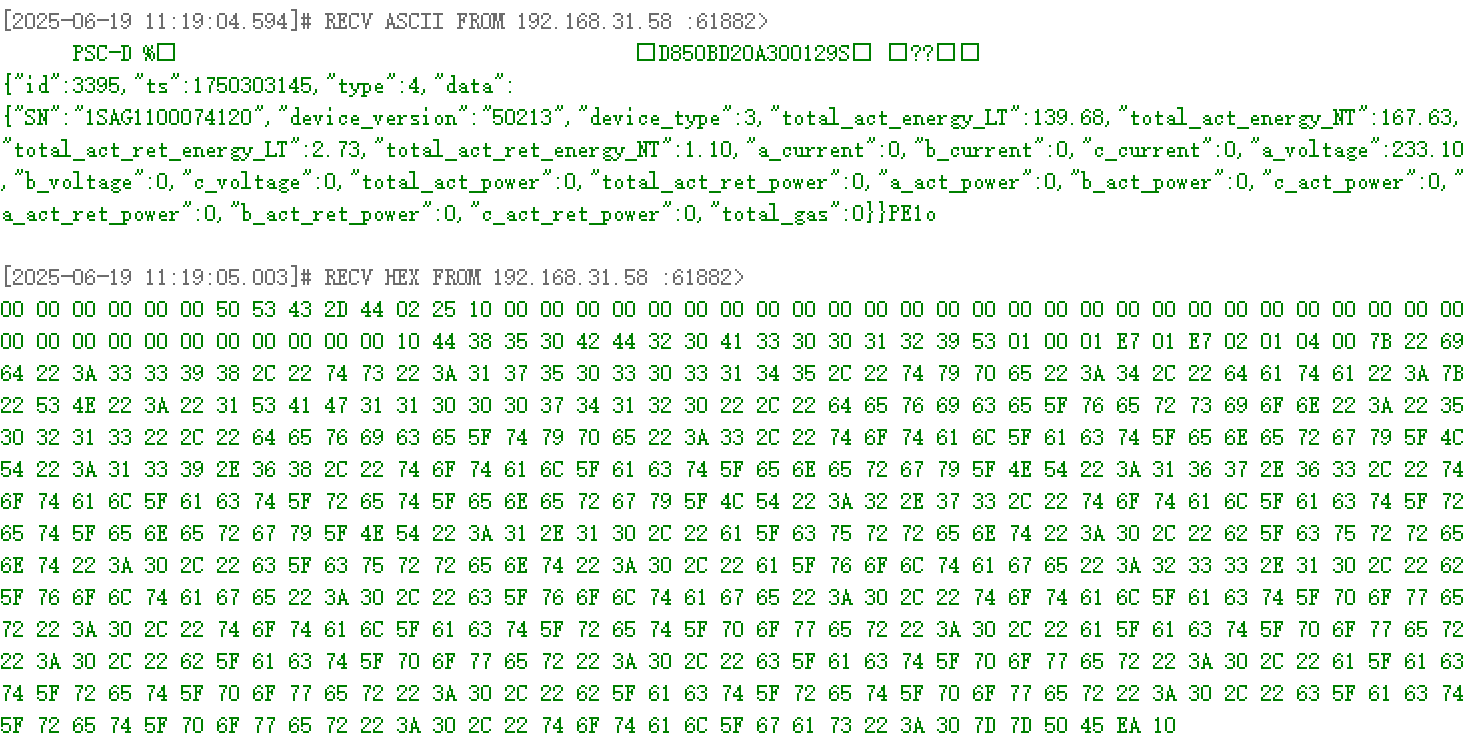
For devices supporting UDP broadcast, receive UDP packets to obtain device information.
| Device | Broadcast Address & Port | Frequency (ms) |
|---|---|---|
| P1 Reader | Address: 255.255.255.255; Port: 8088 | 500 |
| Smart Plug | Address: 255.255.255.255; Port: 8088 | 500 |
| Meter | Address: 255.255.255.255; Port: 8088 | 200 |
Steps:
-
Ensure device and computer are on the same LAN.
-
Open network debugging tool.
-
Select UDP protocol.
-
Select your computer's IP address in the LAN.

-
Set local port to 8088.

-
Click Open to start listening.
-
Select packet display format: ASCII/Hex.

-
Received packets will display in the receive area.
If no data is received, verify device and computer are on the same LAN and ensure firewall allows communication.
UDP Device Key Encryption
Coming soon
4. HTTP Usage Guide
Request Structure
Request Methods
- GET: Request specified resource from server.
- POST: Request server to perform an action.
Request Address
http://{IP_ADDRESS}:8080/rpc/{API}
where:
{IP_ADDRESS}: Device IP address.{API}: HTTP API to call.
Request Examples
- Get device info:
GET http://192.168.31.213:8080/rpc/Sys.GetConfig
- Modify device name:
POST http://192.168.31.213:8080/rpc/Sys.SetConfig?config={"device":{"hostname":"admin"}}
cURL Command Example
- Obtain device info:
curl http://192.168.31.213:8080/rpc/Sys.GetConfig
- Modify device name:
curl -g -X POST -H "Content-Type: application/json" "http://192.168.31.213:8080/rpc/Sys.SetConfig?config={\"device\":{\"hostname\":\"admin\"}}"
Digest Authentication
Digest authentication verifies user identity without transmitting plaintext passwords.
In HTTP+Digest mode, devices after first use or factory reset require default password change before using other APIs.
Change Password
-
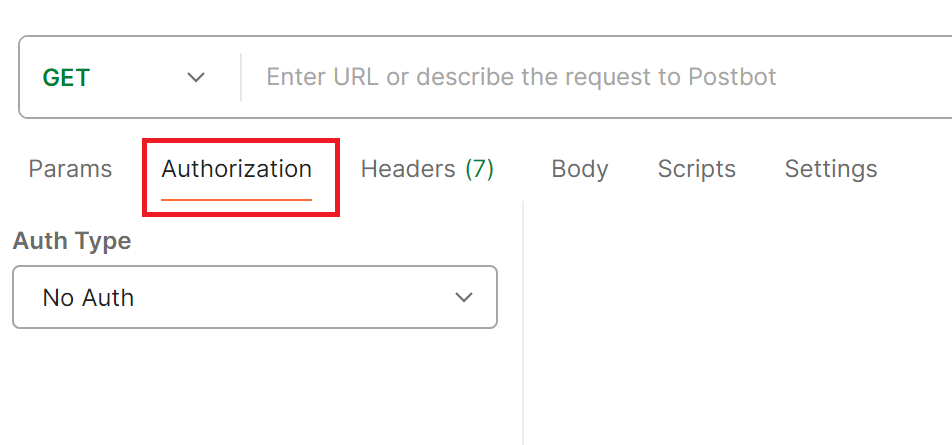
In Postman, select Authorization tab.
-
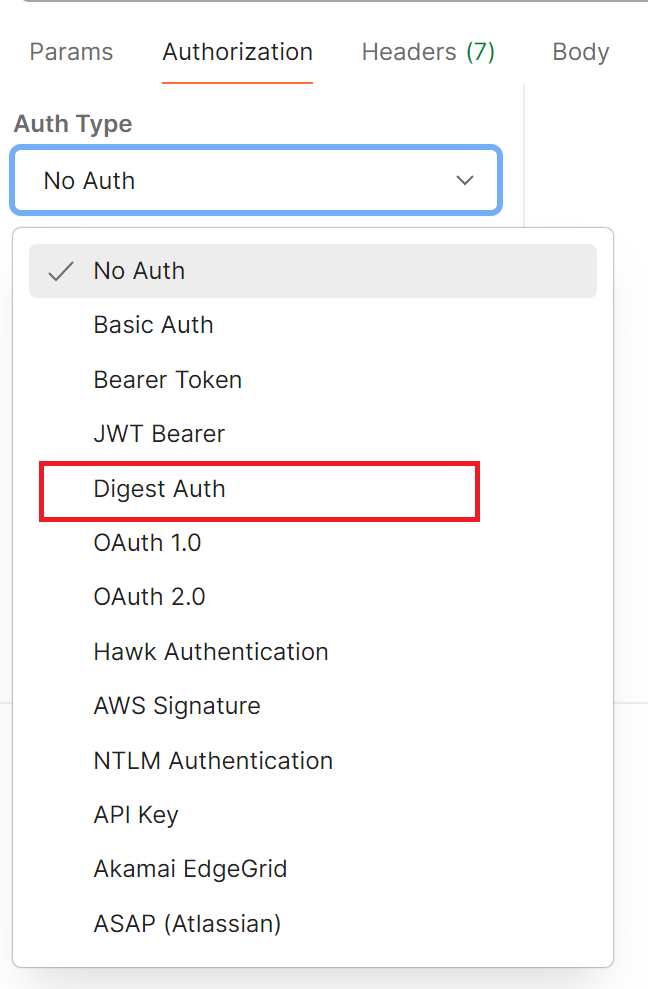
Select Digest Auth from Auth Type dropdown.
-
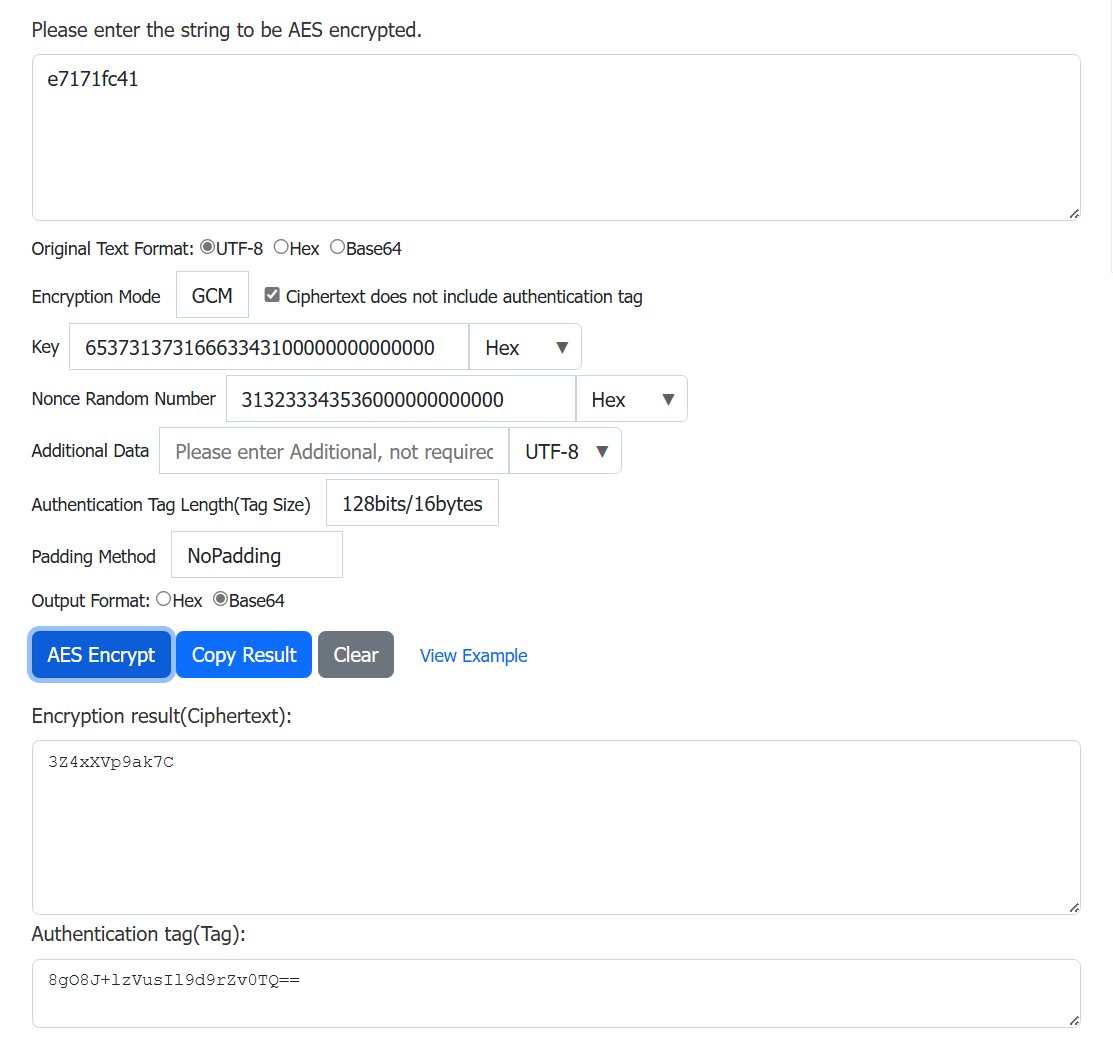
Use online AES tools to generate Base64-encoded password and tag:
- Required Tools:
- ASCII to Hex
- Hex to Base64
- AES_GCM Encryptor
- Parameters:
- Plaintext: New password
- Key: Current password (Hex format, pad with
00to 16 bytes). Example:e7171fc41→65373137316663343100000000000000 - Nonce: Random value (Hex format, pad with
00to 12 bytes). Example:123456→313233343536000000000000 - Padding: NoPadding
- Required Tools:
-
Authentication parameters:
Field Value Username Default: opendPassword Default device KEY Realm AES128-GCM generated Tag (Base64) Nonce Same random value used in AES Algorithm MD5 qop auth Nonce Count Random value Client Nonce Random value Opaque (Leave empty) -
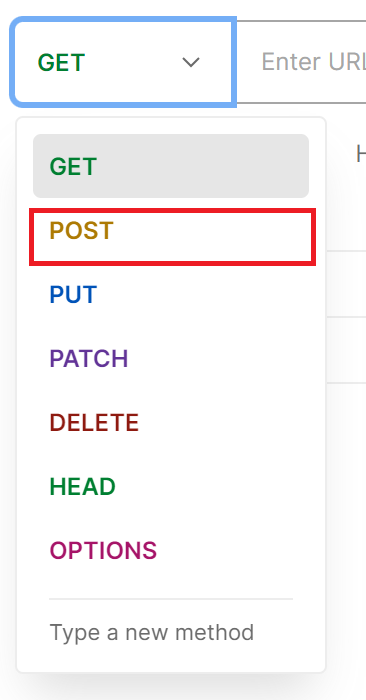
Select POST method.
-
Request address:
http://{IP_ADDRESS}:8080/rpc/User.SetConfig?config={"Password":"{PASSWORD}"}
where:
{IP_ADDRESS}:Device IP address.{PASSWORD}: AES128-GCM encrypted ciphertext (Base64).
- Click Send.
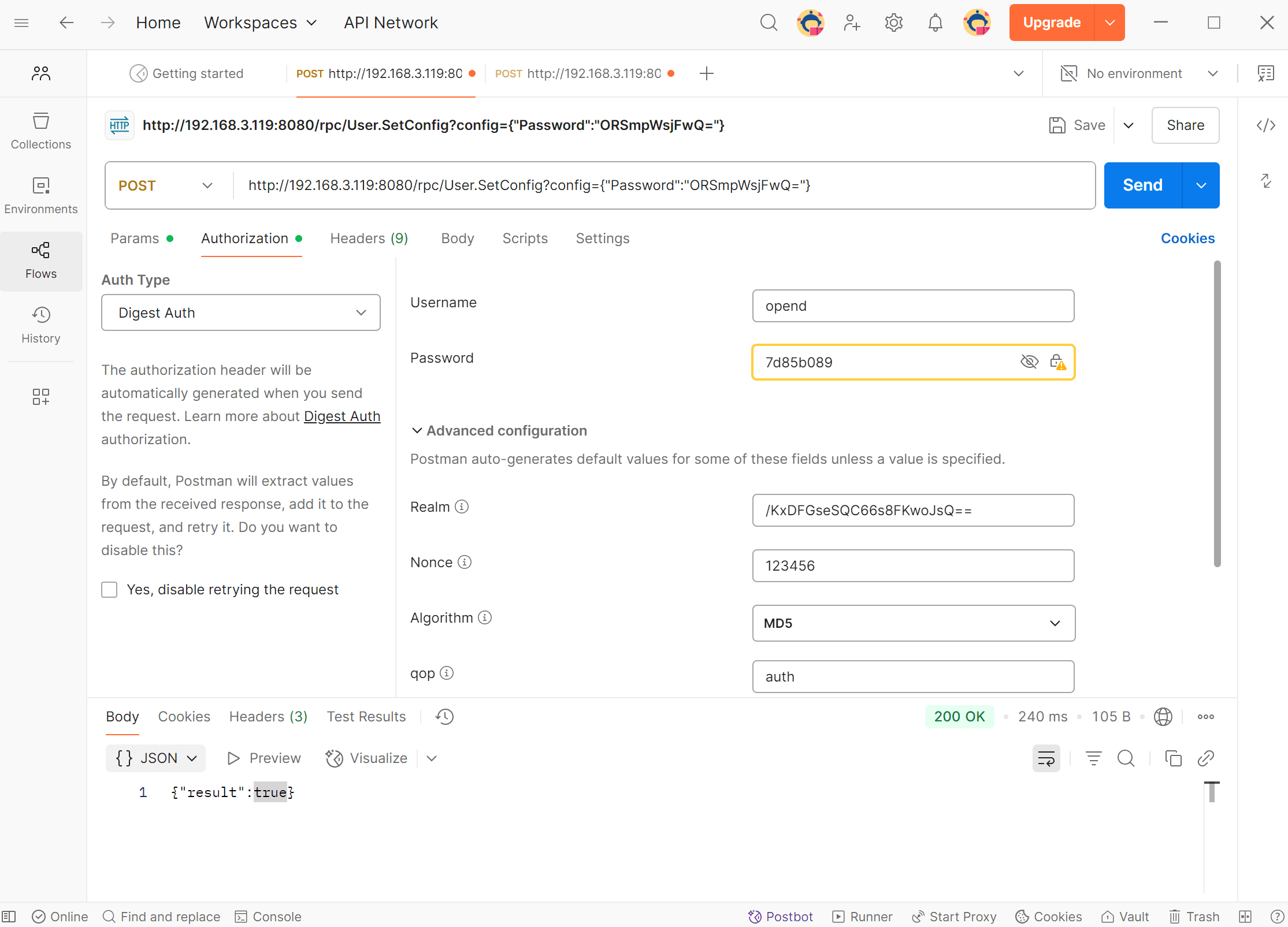
✅ Success
Returns
{"result": true}if password changed successfully.
Request Other APIs
-
Select Authorization tab in Postman.
-
Choose Digest Auth.
-
Fill parameters:
| Field | Value |
|---|---|
| Username | opend |
| Password | New password |
| Realm | Random value |
| Nonce | Nonce from AES encryption |
| Algorithm | MD5 |
| qop | auth |
| Nonce Count | Random value |
| Client Nonce | Random value |
| Opaque | Leave empty |
HTTPS
Coming soon
Error Codes
| Code | Description | Explanation |
|---|---|---|
| 400 | Bad Request | Server cannot understand request format. |
| 401 | Unauthorized | Authentication required. Provide valid credentials. |
| 403 | Forbidden | Server refuses action (typically permission issue). |
| 404 | Not Found | Resource not found or deleted. |
| 405 | Method Not Allowed | Incompatible method (e.g., write operation on read-only resource). |
| 408 | Request Timeout | Server timed out waiting for request. Retry later. |
| 409 | Conflict | Request conflicts with current resource state (e.g., concurrent edits). |
| 410 | Gone | Resource permanently deleted. |
| 500 | Internal Server Error | Server encountered unexpected error. |
| 501 | Not Implemented | Server does not support requested method. |
| 502 | Bad Gateway | Invalid response received from upstream server. |
| 503 | Service Unavailable | Server temporarily overloaded or in maintenance. |
| 504 | Gateway Timeout | Upstream server response timeout. |
| 505 | HTTP Version Not Supported | Server does not support HTTP version in request. |
5. HTTP API
| Component | Description |
|---|---|
| Sys | Device model, firmware version, etc. |
| P1 | Read gas/electricity data from P1 meter reader. |
| Plug | Read power metrics and control smart sockets. |
| Meter | Read the electricity meter data. |
Sys
Get Device Info
- Request Example
GET http://192.168.31.213:8080/rpc/Sys.GetConfig
- Response Example
{
    "device": {
        "hostname": "admin",
        "timezone": 480,
        "type": "",
        "sn": "2730890019",
        "mac": "E8FDF8DD9A76",
        "fw": "LSW3_01_E030_SS_00_00.00.00.03",
        "time": "2024-11-26 19:14:23",
        "time_stamp": 1732648463,
        "run_time": 839
    }
}
Method: Sys.GetConfig
- Returns
Parameter Type Description device object See Config table.
Set Device Name/Timezone
- Request Example
POST http://192.168.31.213:8080/rpc/Sys.SetConfig?config={"device":{"hostname":"admin"}}
- Response Example
{"result": true}
Method: Sys.SetConfig
- Parameters
Parameter Type Description config object Only hostname and timezone are writable. See Config table.
- Returns
Parameter Type Description result bool true: success,false: failure.
Config
| Parameter | Type | Description |
|---|---|---|
| device | object | Device config. See below. |
device
| Parameter | Type | Description | R/W |
|---|---|---|---|
| hostname | string | Device name | R/W |
| timezone | int | Timezone | R/W |
| type | string | Device model | R |
| sn | string | Serial number | R |
| mac | string | MAC address | R |
| fw | string | Firmware version | R |
| time | string | Current time (YYYY-MM-DD HH:mm:ss) | R |
| time_stamp | int | Unix timestamp | R |
| run_time | int | Uptime (seconds) | R |
P1
Get Meter Data (JSON)
- Request Example
GET http://192.168.31.213:8080/rpc/P1.JsonData
- Response Example
{
    "SN": "E0036003765928016",
    "Device_Version ": "50",
    "Device_Type": 0,
    "Electricity delivered to client_low tariff": 53754.58,
    "Electricity delivered to client_normal tariff": 9818.93,
    "Electricity delivered by client_low tariff": 53754.58,
    "Electricity delivered by client_normal tariff": 9818.93,
    "AC_Phase-A_Current ": 12,
    "AC_Phase-B_Current": 0,
    "AC_Phase-C_Current": 0,
    "AC_Phase-A_Voltage": 237,
    "AC_Phase-B_Voltage": 237,
    "AC_Phase-C_Voltage": 236,
    " Actual electricity power delivered +P ": 0,
    " Actual electricity power received -P ": 2.94,
    "Instantaneous active power L1 +P": 0,
    "Instantaneous active power L2 +P": 0,
    "Instantaneous active power L3 +P": 0,
    "Instantaneous active power L1 -P": 2.95,
    "Instantaneous active power L2 -P": 0,
    "Instantaneous active power L3 -P": 0
}
Method: P1.JsonData
- Returns: JSON-formatted meter data.
Parameter Description Unit SN Meter SN - Device_Version Meter version - Device_Type Meter model - Electricity delivered to client_low tariff Forward energy (low tariff) kWh Electricity delivered to client_normal tariff Forward energy (normal tariff) kWh Electricity delivered by client_low tariff Reverse energy (low tariff) kWh Electricity delivered by client_normal tariff Reverse energy (normal tariff) kWh AC_Phase-L1_Current Phase A current A AC_Phase-L2_Current Phase B current A AC_Phase-L3_Current Phase C current A AC_Phase-L1_Voltage Phase A voltage V AC_Phase-L2_Voltage Phase B voltage V AC_Phase-L3_Voltage Phase C voltage V Actual electricity power delivered +P Total forward active power kW Actual electricity power received -P Total reverse active power kW Instantaneous active power L1 +P Purchased power L1 kW Instantaneous active power L2 +P Purchased power L2 kW Instantaneous active power L3 +P Purchased power L3 kW Instantaneous active power L1 -P Grid feed-in power L1 kW Instantaneous active power L2 -P Grid feed-in power L2 kW Instantaneous active power L3 -P Grid feed-in power L3 kW Total Gas Consumption Total gas consumption m³
Get Raw Meter Data
- Request Example
GET http://192.168.31.213:8080/rpc/P1.GetData
- Response Example
{
    3:0.2.8(50)
    0-0:1.0.0(181106140429W)
    0-0:96.1.1(31333631353032362020202020202020)
    1-0:1.8.1(10830.511*kWh)
    1-0:1.8.2(002948.827*kWh)
    1-0:2.8.1(001285.951*kWh)
    1-0:2.8.2(002876.514*kWh)
    0-0:96.14.0(0002)
    1-0:1.7.0(21.100*kW)
    1-0:2.7.0(00.000*kW)
    0-0:96.7.21(00006)
    0-0:96.7.9(00003)
    1-0:99.97.0(1)(0-0:96.7.19)(180529135630S)(0000002451*s)
    1-0:32.32.0(00003)
    1-0:52.32.0(00002)
    1-0:72.32.0(00002)
    1-0:32.36.0(00001)
    1-0:52.36.0(00001)
    1-0:72.36.0(00001)
    0-0:96.13.0()
    1-0:32.7.0(236.0*V)
    1-0:52.7.0(232.6*V)
    1-0:72.7.0(235.1*V)
    1-0:31.7.0(002*A)
    1-0:51.7.0(000*A)
    1-0:71.7.0(000*A)
    1-0:21.7.0(00.000*kW)
    1-0:41.7.0(00.033*kW)
    1-0:61.7.0(00.132*kW)
    1-0:22.7.0(00.676*kW)
    1-0:42.7.0(00.000*kW)
    1-0:62.7.0(00.000*kW)
    0-1:24.1.0(003)
    0-1:96.1.0(4730303339303031373030343630313137)
    0-1:24.2.1(210606140010W)(02569.646*m3)
    !1F28
}
Method: P1.GetData
- Returns: Raw meter data.
Plug
Get Power Consumption
- Request Example
GET http://192.168.31.213:8080/rpc/Plug.GetData
- Response Example
{
    "voltage": 230,
    "electric_current": 0,
    "positive_active_energy": 1.730654,
    "reverse_active_energy": 0.000000,
    "power": 1.217517
}
Method: Plug.GetData
- Returns
Parameter Type Description Unit voltage int Voltage V electric_current int Current A positive_active_energy float Forward active energy kWh reverse_active_energy float Reverse active energy kWh power float Active power W
Get Plug Status
- Request Example
GET http://192.168.31.213:8080/rpc/Plug.GetStatus
- Response Example
{"switch_status": "on"}
Method: Plug.GetStatus
- Returns
Parameter Type Description switch_status string on: open,off: closed
Set Plug Status
Request Example
POST http://192.168.31.213:8080/rpc/Plug.SetStatus?config={"switch_status":"on"}
- Response Example
{"result": true}
Method: Plug.SetStatus
- Parameters
Parameter Type Description config object Sets socket status. See Config.
- Returns
Parameter Type Description result bool true: success,false: failure.
Config
| Parameter | Type | Description | Unit | R/W |
|---|---|---|---|---|
| voltage | int | Voltage | V | R |
| current | int | Current | A | R |
| Electricity delivered to client | float | Forward active energy | kWh | R |
| Electricity delivered by client | float | Reverse active energy | kWh | R |
| Active power | float | Active power | W | R |
| switch_status | string | on: open, off: closed | - | R/W |
Meter
Get Meter Data (JSON)
- Request Example
GET http://192.168.31.213:8080/rpc/Meter.JsonData
- Response Example
- Single-phase meter
- Three-phase meter
- IR Reader
{
    "SN": "3310500113",
    "voltage": 229.87,
    "current": 0.66,
    "active power": 133.50,
    "apparent power": 209.60,
    "reactive power": -29.80,
    "power factor": 0.63,
    "frequency": 50.03,
    "total_act_energy": 3.53,
    "total_act_ret_energy": 0.18
}
{
    "data": {
        "sn": "3310290536",
        "a_current": 0,
        "b_current": 0,
        "c_current": 0.54,
        "a_voltage": 0,
        "b_voltage": 0,
        "c_voltage": 231,
        "frequency": 49.73,
        "total_pf": 73.30,
        "a_pf": 100,
        "b_pf": 100,
        "c_pf": 73.30,
        "total_act_power": 95,
        "a_act_power": 0,
        "b_act_power": 0,
        "c_act_power": 93,
        "total_aprt_power": 124,
        "a_aprt_power": 0,
        "b_aprt_power": 0,
        "c_aprt_power": 124,
        "total_react_power": -27,
        "a_react_power": 0,
        "b_react_power": 0,
        "c_react_power": -27,
        "total_act_energy": 29.57,
        "total_act_ret_energy": 10.15,
        "a_act_energy": 12.69,
        "b_act_energy": 0,
        "c_act_energy": 16.87,
        "a_act_ret_energy": 0,
        "b_act_ret_energy": 0,
        "c_act_ret_energy": 10.14
    }
}
{
  "SN":"3320730586",
  "SN2":"56197869",
  "Total Active Power":-30,
  "L1 Phase Voltage":0,
  "L2 Phase Voltage":0,
  "L3 Phase Voltage":230.50,
  "L1 Phase Current":0,
  "L2 Phase Current":0,
  "L3 Phase Current":0.17,
  "Reactive Power":-20,
  "L1 Phase Power":0,
  "L2 Phase Power":0,
  "L3 Phase Power":-30,
  "Full-Time Cumulative Grid-Connected Electric Energy":9.55,
  "Accumulated Purchase Of Electric Energy In Full Time.":56.21,
  "Installation Direction":"Vertical"
}
Method: Meter.JsonData
- Returns: JSON-formatted meter data.
- Single-phase meter
- Three-phase meter
- IR Reader
| Parameter | Description | Unit |
|---|---|---|
| SN | Device SN | - |
| current | Current | A |
| voltage | Voltage | V |
| frequency | AC frequency | Hz |
| power factor | Power factor | - |
| active Power | Forward/Reverse active power | W |
| apparent power | Forward/Reverse apparent power | W |
| reactive power | Forward/Reverse reactive power | W |
| total_act_energy | Total forward active energy | kWh |
| total_act_ret_energy | Total reverse active energy | kWh |
| Parameter | Description | Unit |
|---|---|---|
| sn | Device SN | - |
| a_current | AC Phase A Current | A |
| b_current | AC Phase B Current | A |
| c_current | AC Phase C Current | A |
| a_voltage | AC Phase A Voltage | V |
| b_voltage | AC Phase B Voltage | V |
| c_voltage | AC Phase C Voltage | V |
| frequency | AC Frequency | Hz |
| total_pf | Total AC Power Factor | % |
| a_pf | AC Phase A Power Factor | % |
| b_pf | AC Phase B Power Factor | % |
| c_pf | AC Phase C Power Factor | % |
| total_act_power | Forward/Reverse Total AC Active Power | W |
| a_act_power | Forward/Reverse AC Phase A Active Power | W |
| b_act_power | Forward/Reverse AC Phase B Active Power | W |
| c_act_power | Forward/Reverse AC Phase C Active Power | W |
| total_aprt_power | Forward/Reverse Total AC Apparent Power | W |
| a_aprt_power | Forward/Reverse AC Phase A Apparent Power | W |
| b_aprt_power | Forward/Reverse AC Phase B Apparent Power | W |
| c_aprt_power | Forward/Reverse AC Phase C Apparent Power | W |
| total_react_power | Total Reverse Reactive Power | W |
| a_react_power | Forward/Reverse AC Phase A Reactive Power | W |
| b_react_power | Forward/Reverse AC Phase B Reactive Power | W |
| c_react_power | Forward/Reverse AC Phase C Reactive Power | W |
| total_act_energy | Total Forward Active Energy | kWh |
| total_act_ret_energy | Total Reverse Active Energy | kWh |
| a_act_energy | Phase A Total Forward Active Energy | kWh |
| a_act_ret_energy | Phase A Total Reverse Active Energy | kWh |
| b_act_energy | Phase B Total Forward Active Energy | kWh |
| b_act_ret_energy | Phase B Total Reverse Active Energy | kWh |
| c_act_energy | Phase C Total Forward Active Energy | kWh |
| c_act_ret_energy | Phase C Total Reverse Active Energy | kWh |
| Parameter | Description | Unit |
|---|---|---|
| SN | Device SN | - |
| SN2 | Meter SN | - |
| Total Active Power | Total Active Power | W |
| L1 Phase Voltage | L1-Phase Voltage | V |
| L2 Phase Voltage | L2-Phase Voltage | V |
| L3 Phase Voltage | L3-Phase Voltage | V |
| L1 Phase Current | L1-Phase Current | A |
| L2 Phase Current | L2-Phase Current | A |
| L3 Phase Current | L3-Phase Current | A |
| Reactive Power | Reactive Power | W |
| L1 Phase Power | L1-Phase Power | W |
| L2 Phase Power | L2-Phase Power | W |
| L3 Phase Power | L3-Phase Power | W |
| Full-Time Cumulative Grid-Connected Electric Energy | Accumulated Grid-connected Electricity | kWh |
| Accumulated Purchase Of Electric Energy In Full Time | Accumulated Energy-purchased | kWh |
| Installation Direction | Reader Installation Direction | - |
The data obtained by the IR Reader comes directly from the device itself, and its specific content and format depend entirely on the device model, communication protocol, and manufacturer.
6. Devices
P1 Reader
The P1 Reader (P1-2W) connects directly to a single P1 meter via RJ12 interface, continuously collecting meter status and electricity data for long-term monitoring. It transmits data over WiFi to local/cloud platforms, visualizing real-time status and historical trends.
| Model | Supported API |
|---|---|
| P1-2W | Sys |
| P1 |
Smart Plug
The Smart Plug (SP-2W-EU) supports home energy monitoring with bidirectional metering and remote control. It uploads energy data via WiFi, allowing users to remotely control appliances and monitor usage via apps.
| Model | Supported API |
|---|---|
| SP-2W-EU | Sys |
| Plug |
Meter
The meter is designed for residential/small commercial bidirectional metering. It is installed on DIN rails (35mm) using split-core CTs and uploads data via WiFi/Ethernet for detailed energy analysis.
| Model | Supported API |
|---|---|
| MR1-D5-WR MR1-D5-W MR1-D4-WRE MR3-D4-WRE MR1-D4-WE MR3-D4-WE MR1-D3-W MR3-D3-W | Sys |
| Meter |
Note: MR1 corresponds to single-phase meters, and MR3 corresponds to three-phase meters.
IR Reader
The IR Reader primarily monitor the electricity system long-term and effectively by collecting data on the operating status and consumption data. Connecting to a single infrared meter via an infrared interface, the IR Reader receive various consumption information from the meter and transmit the data to a local or remote software platform via WiFi. The meter's real-time status and historical data are presented in graphical form, making them intuitive, clear, and easy to understand. Users can monitor the meter system anytime, anywhere, greatly simplifying maintenance.
| Model | Supported API |
|---|---|
| NIR-1 NIR-3 | Sys |
| Meter |
7. FAQ
| Questions | Reasons and solutions |
|---|---|
| HTTP access returns 401 Unauthorized. | 1. Check whether the Digest authentication username and password are correct. 2. Devices on first use or after factory reset can only access the User.SetConfig interface. See Digest authentication. Once you change the password successfully, full access to all interfaces is restored. |
| The device did not return the IP address after sending the broadcast command. | The OpenData API has not yet been enabled, resulting in this feature being unavailable. For details, please refer to Enable API. |
| Failed to retrieve data. | 1. Check whether the device is turned on. 2. Check whether the device is connected to the same local area network as the computer. |