Strategy Center
1. Overview
The Strategy Center is used to configure and manage system operating logic. By setting up automation strategies, users can enable devices to operate and respond automatically under different time periods and conditions.
With strategy configuration, users can:
- Control device operation based on time schedules
- Trigger automatic actions based on conditions
- Coordinate multiple strategies to improve system efficiency
2. Page Overview
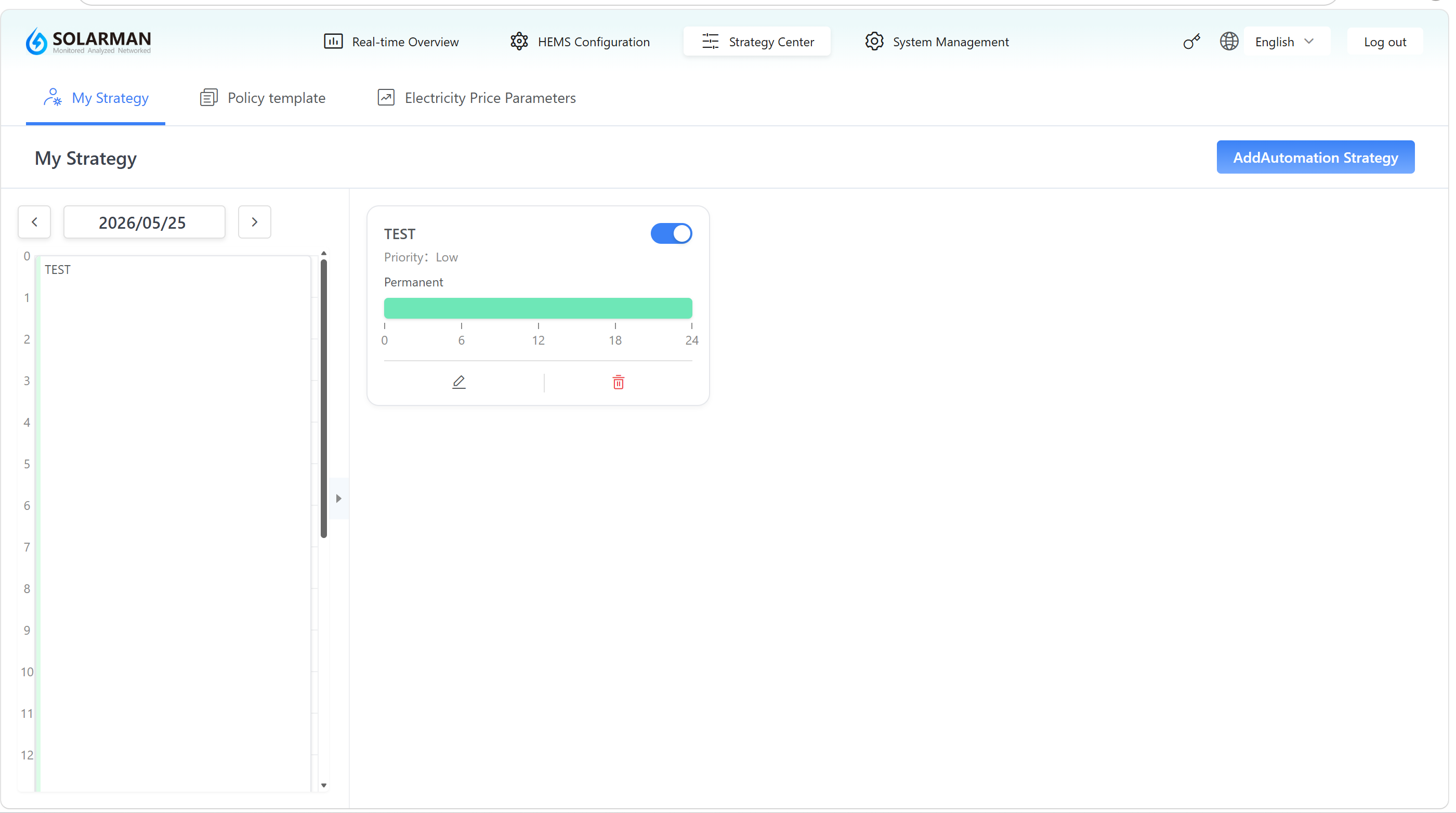
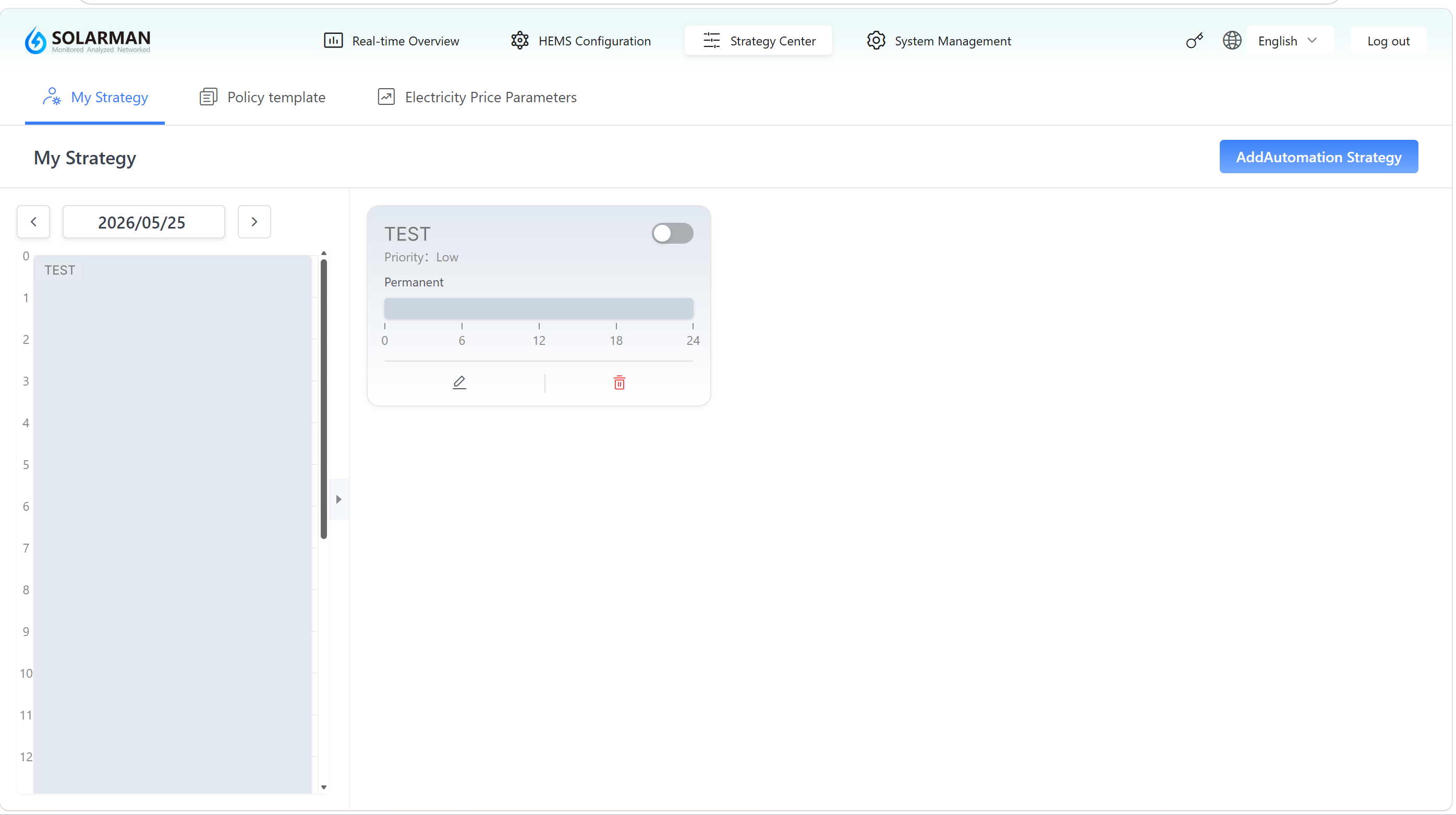
After entering the Strategy Center module, the system will display the My Strategy page by default.
The page mainly includes:
- My Strategy: List of created strategies. The Add Automation Strategy button in the upper-right corner is used to create new strategies.
- Policy Templates: Preset strategies provided by the system
- Electricity Price Parameters: Electricity price settings used for strategy calculations
3. Add an Automation Strategy
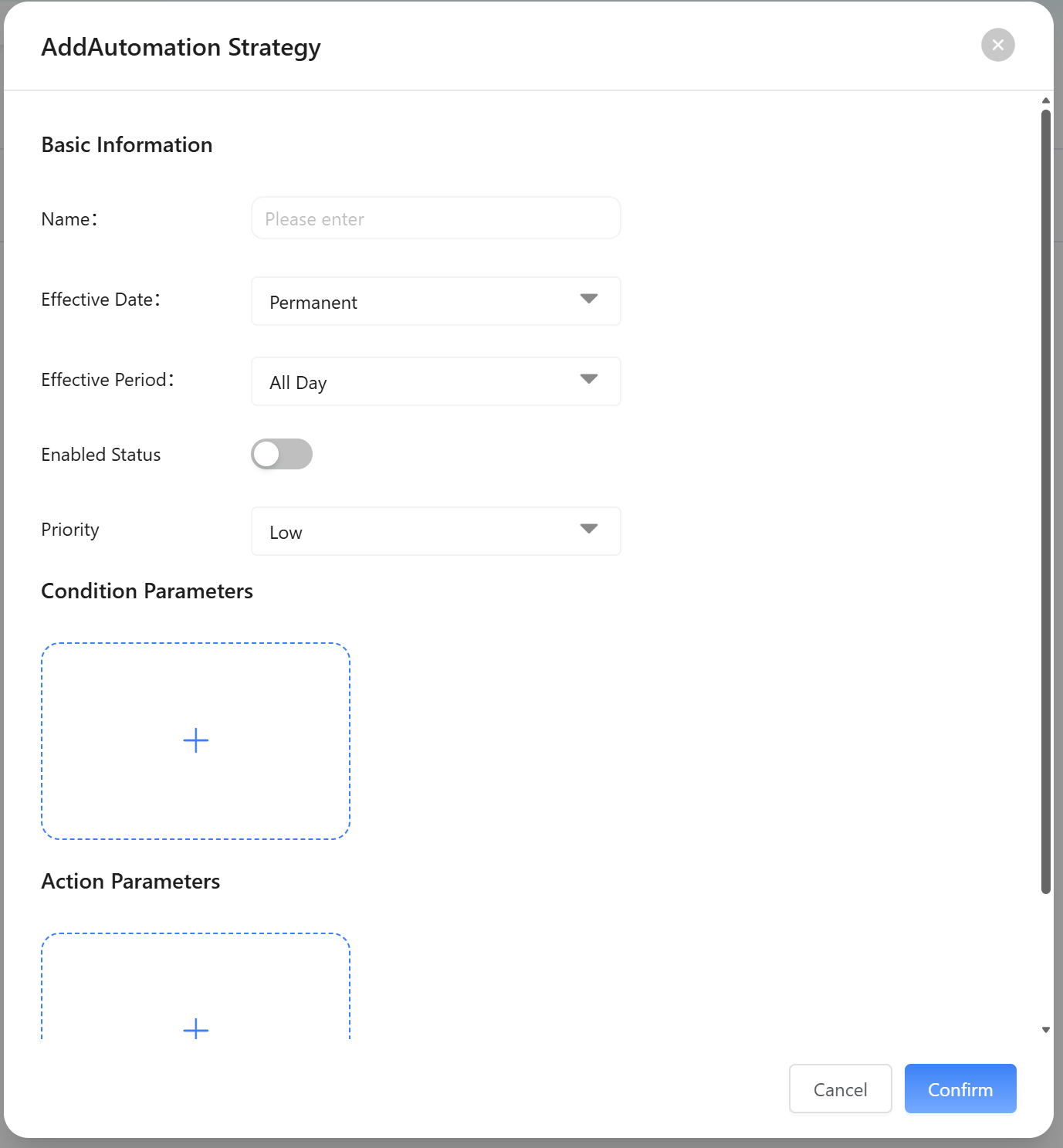
Click the Add Automation Strategy button in the upper-right corner of the My Strategy page. The system will open a strategy configuration window for defining the execution logic.
3.1 Basic Information
Used to define the basic properties of a strategy:
| Parameter | Description |
|---|---|
| Name | Custom strategy name for easy identification |
| Effective Date | - Permanent - Specified Date (start and end dates can be configured) |
| Effective Period | - All Day - Specified Period (supports multiple schedules) |
| Enabled Status | Controls whether the strategy is active |
| Priority | Determines execution order when multiple strategies conflict (higher priority executes first) |
When selecting Specified Date or Specified Period:
- Start and end dates can be configured
- Multiple time periods can be added (such as time-of-use scheduling)
- A timeline view is available for intuitive schedule configuration
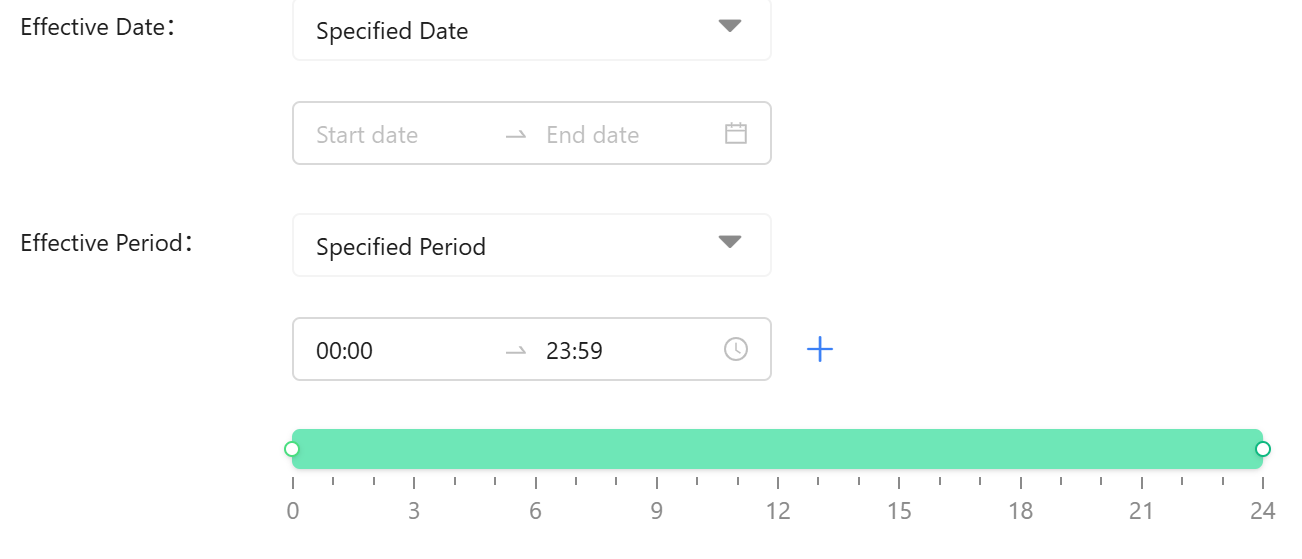
Suitable for scenarios such as time-of-use electricity pricing and scheduled control.
3.2 Condition Parameters
Used to define strategy trigger conditions.
Click “+” to add conditions, such as:
- Feed-in Tariff
- Selling Price of Electricity
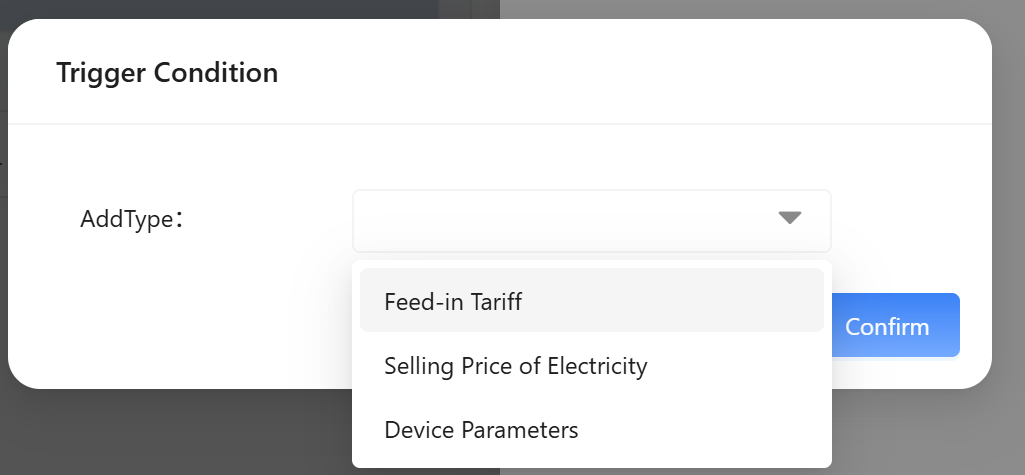
When the configured conditions are met, the strategy will be triggered automatically.
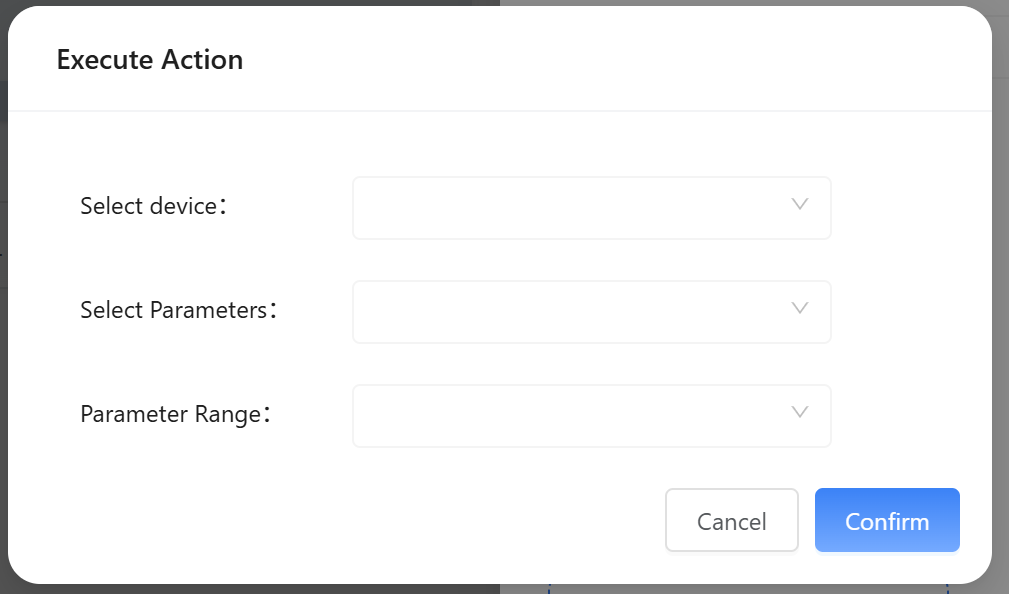
3.3 Action Parameters
Used to define what actions the strategy will perform.
Click “+” to add an action, then configure:
- Device
- Parameters
- Parameter range
- Disabled strategies will not take effect.
- If multiple strategies meet the execution conditions during the same time period and control the same device action, only the strategy with the highest priority will be executed.
- Conditions and actions must be configured correctly; otherwise, the strategy may not work as expected.
- Avoid creating conflicting strategies that control the same device simultaneously.
Once enabled, the system will automatically execute the configured logic without manual intervention, enabling intelligent operation management.
4. Policy Templates
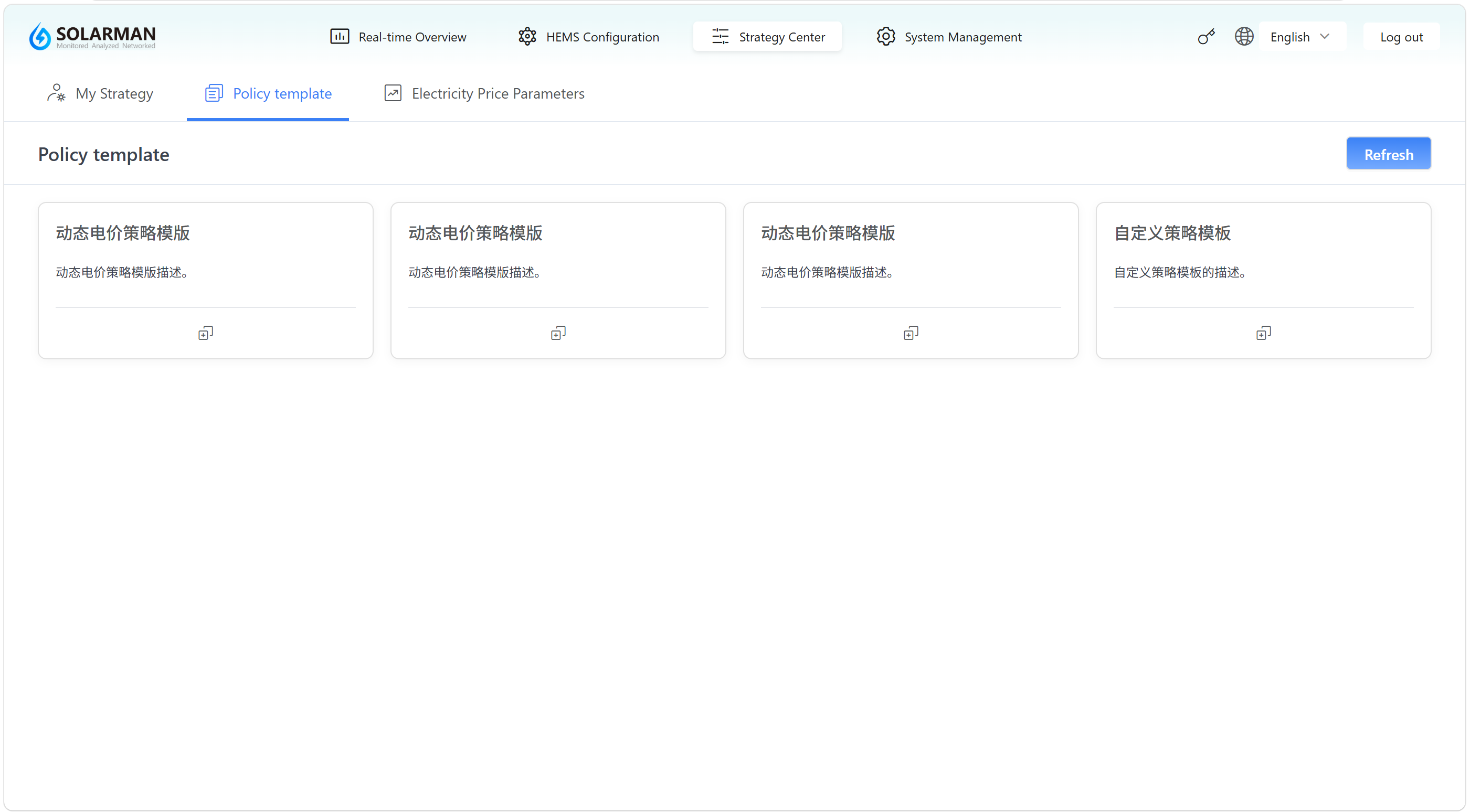
In the Strategy Center module, open the Policy Templates page to view preset strategy templates provided by the system. Users can quickly create automation strategies based on these templates to improve configuration efficiency.
4.1 Overview
Strategy templates are preset collections of common operating strategies. Users can directly generate automation strategies from templates and then adjust them according to actual requirements.
4.2 Page Description
The page displays different strategy templates in card format, including:
| Module | Description |
|---|---|
| Dynamic Electricity Pricing Template | Automatically adjusts operating strategies based on electricity price changes |
| Custom Strategy Template | Allows users to flexibly configure control logic |
| Scheduled Charging Template | Controls charging according to configured schedules |
| Self-Consumption Template | Prioritizes local power generation to reduce electricity costs |
| Demand Management Template | Optimizes control based on power consumption demand |
Each template card provides a quick access entry for use.
4.3 Template Loading Mechanism
- The page initially displays several commonly used strategy templates.
- Click the Refresh button in the upper-right corner to load and display more templates.
If the full template list is not displayed, refresh the page first.
4.4 Instructions
Strategy templates can be used to quickly create automation strategies:
- Go to the Policy Templates page.
- Select the target strategy template.
- Click
 to use the template.
 - Modify parameters as needed.
- Save as a new automation strategy.
- After configuration, view the strategy in the My Strategy page.
4.5 Relationship with Automation Strategies
- Automation Strategy: The actual control logic executed by the system
- Policy Template: A preset solution used for reference or quick creation
Users can create strategies in two ways:
- Method 1: Manually create a strategy in My Strategy (see Add an Automation Strategy)
- Method 2: Quickly generate a strategy from a template
- Templates are provided as reference configurations. Adjust parameters according to your actual application scenario before use.
- Different templates are suitable for different operating scenarios.
- After generating a strategy from a template, it can still be modified in My Strategy.
By using strategy templates effectively, users can quickly build automation strategies for different scenarios and optimize overall system operation.
5. Electricity Price Parameters
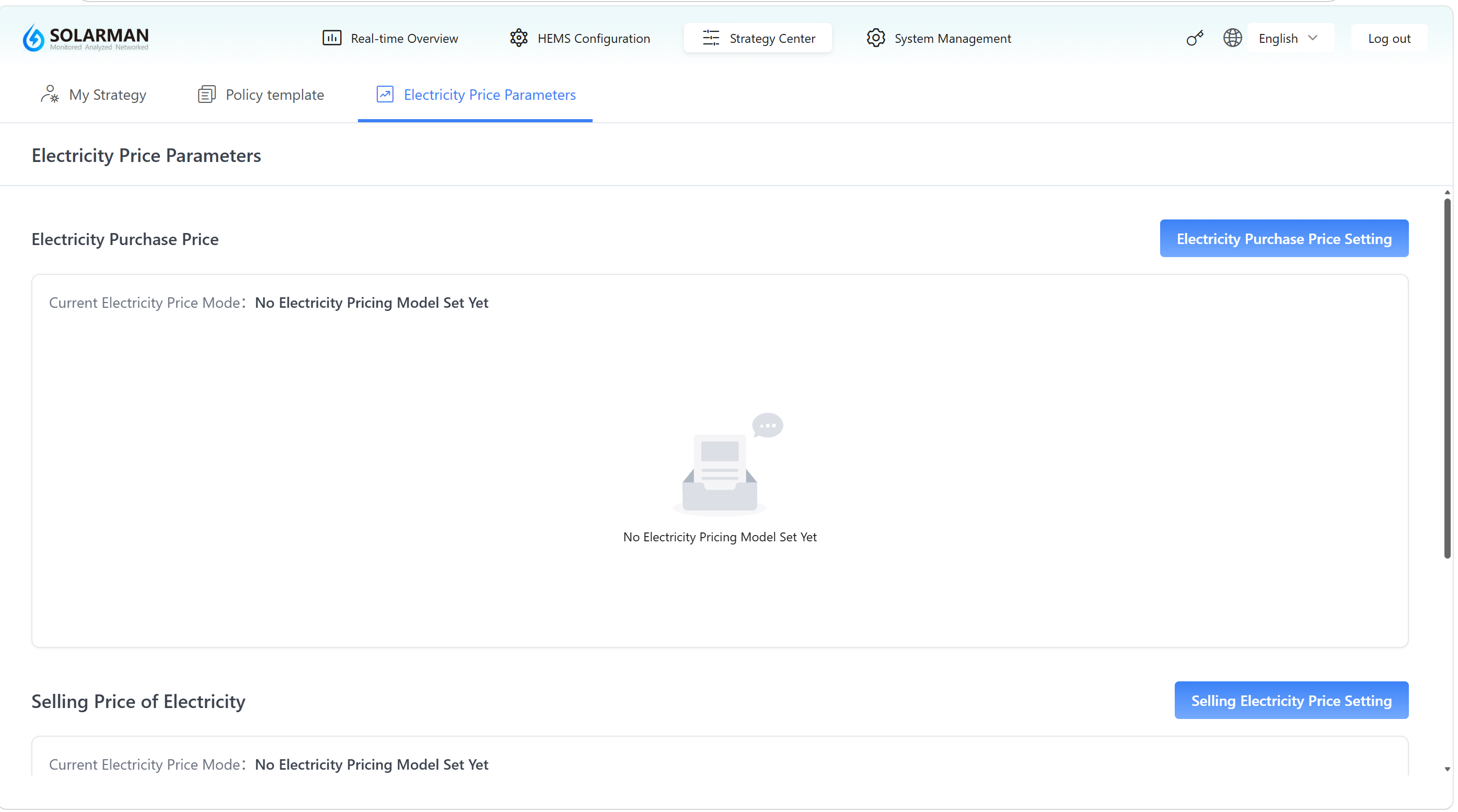
In the Strategy Center module, open the Electricity Price Parameters page to configure electricity price information used by the system. Electricity pricing is an important input for automation strategies such as dynamic pricing strategies and charging/discharging strategies.
5.1 Overview
This page is used to configure electricity pricing parameters involved in system operation, including electricity purchase prices and feed-in electricity prices. Based on these settings, the system can perform time-based scheduling, peak-valley arbitrage, and energy optimization management.
5.2 Page Description
The page mainly consists of two sections:
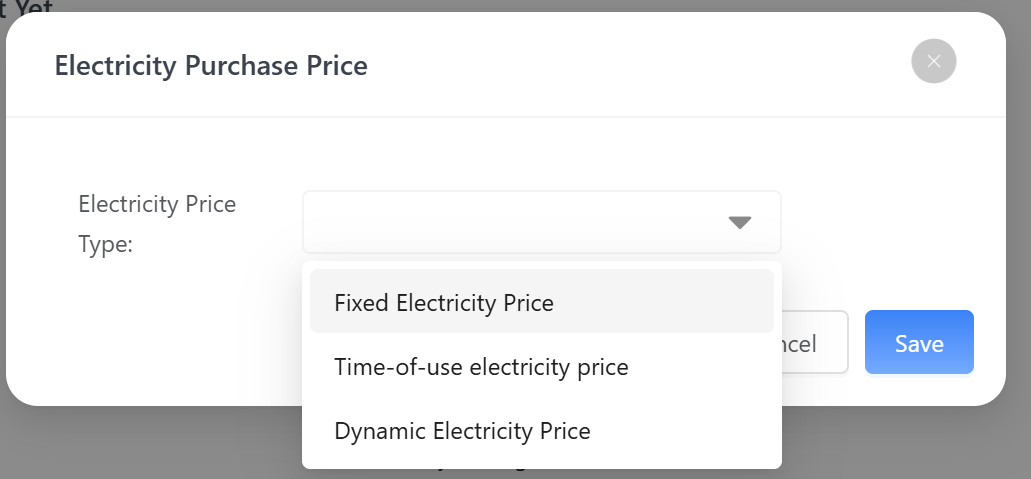
1️⃣ Electricity Purchase Price
Used to configure the electricity price when purchasing power from the grid.
Click the Electricity Purchase Price Settings button next to the price to enter the configuration page.
Available pricing types:
- Fixed Electricity Price
- Time-of-use Electricity Price
- Dynamic Electricity Price
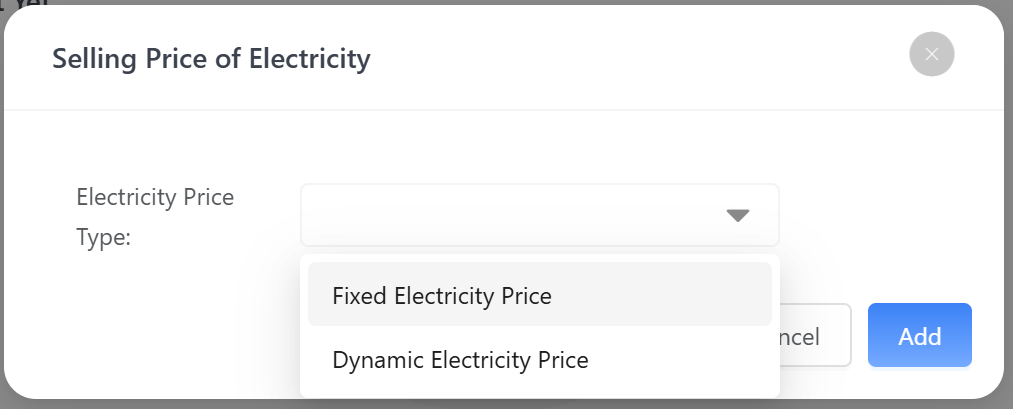
2️⃣ Selling Price of Electricity
Used to configure the electricity price when selling electricity back to the grid.
Click the Selling Electricity Price Settings button next to the price to enter the configuration page.
Available pricing types:
- Fixed Electricity Price
- Dynamic Electricity Price
👉 Users can configure pricing according to local electricity policies or energy usage requirements.
5.3 Usage Notes
Electricity pricing parameters are used in strategy calculation logic. Strategies such as Dynamic Electricity Pricing and Scheduled Charging rely on electricity pricing configuration.
If electricity pricing is not configured, some strategies may not function properly or may have limited effectiveness.
- Configure electricity prices according to actual utility pricing standards.
- Ensure time periods are configured correctly for time-of-use pricing.
- Purchase prices and feed-in prices should be configured separately to avoid logic conflicts.
Proper electricity pricing configuration helps the system optimize energy scheduling and improve economic benefits.