Add Device
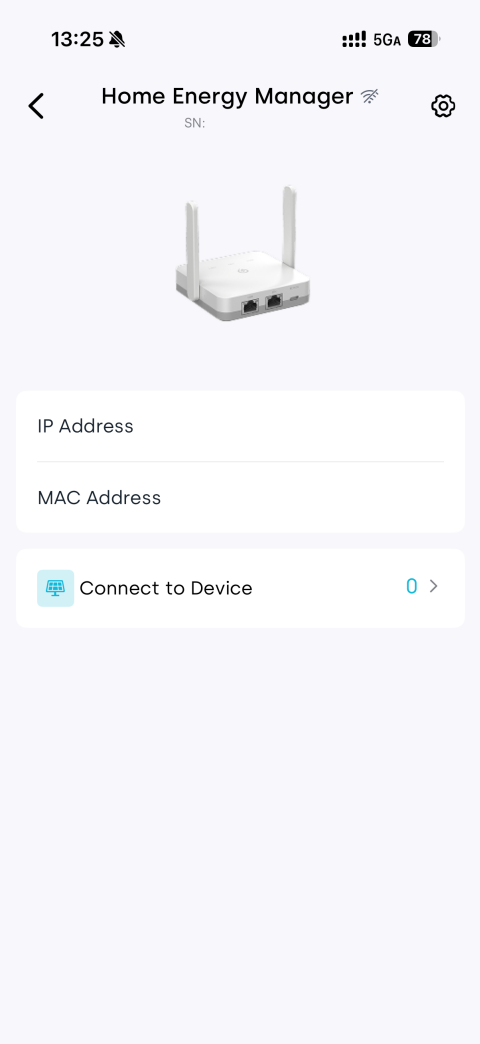
After adding the EMH-2 device in the Energy Ease App, you can view device operating data, network status, and information about connected sub-devices.
tip
- Make sure the device is powered on and has started normally.
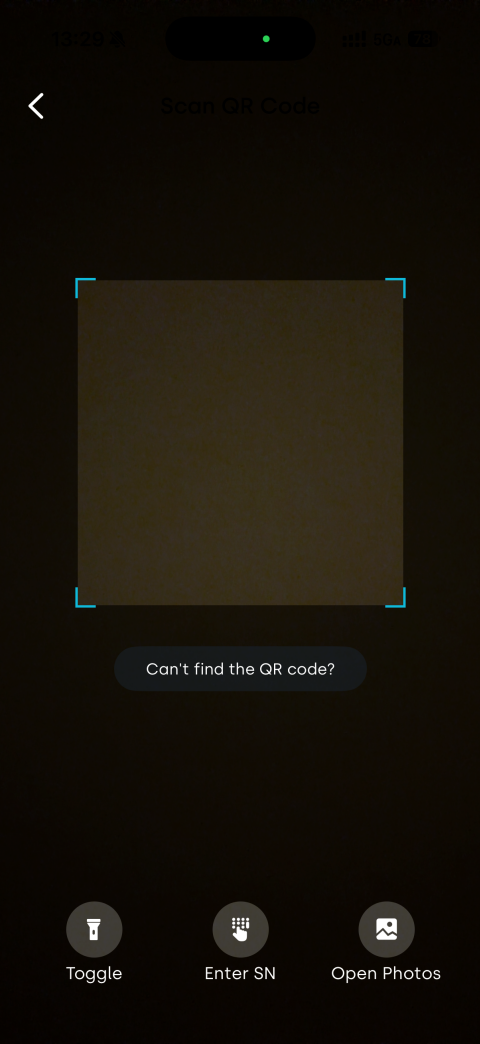
- The QR code can be found on the label at the bottom of the device.
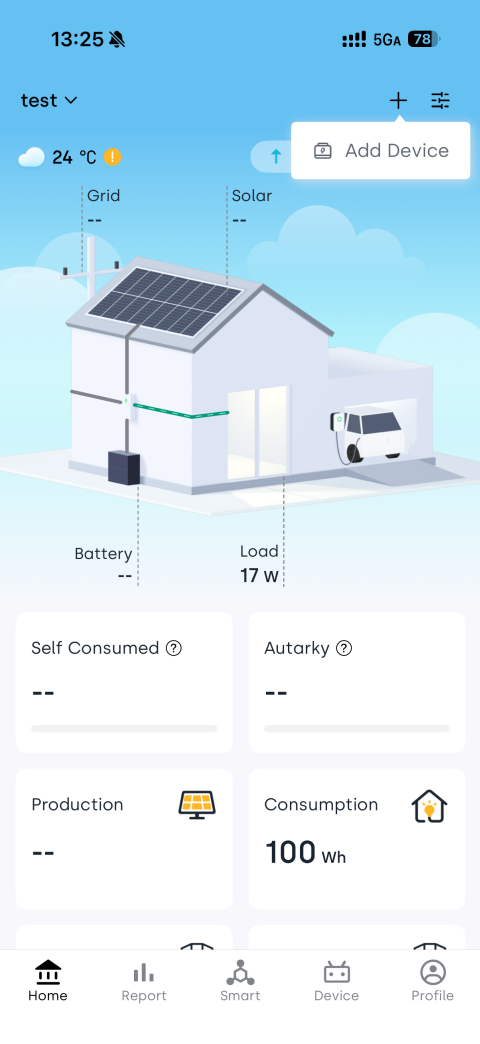
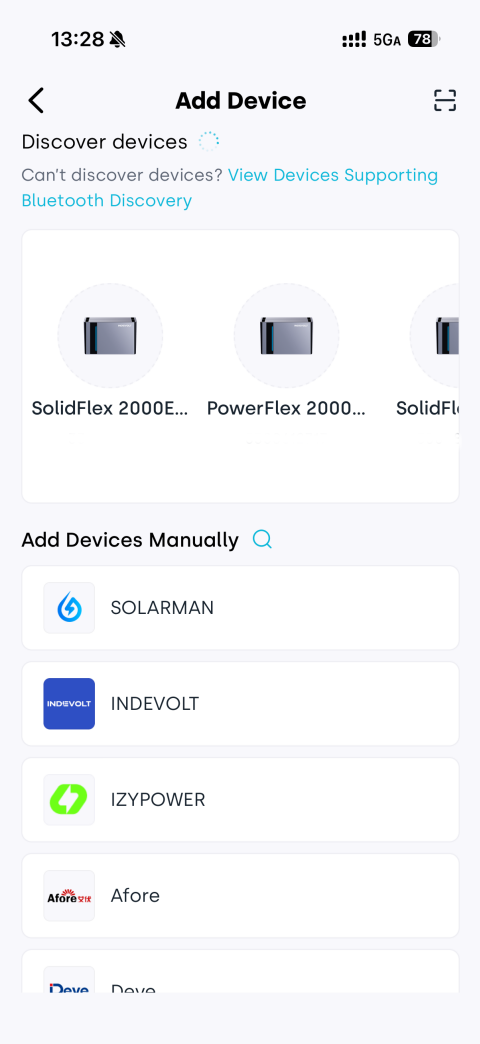
- Tap "+" in the upper-right corner of the App home page, then select "Add Device".
- Tap the
 icon in the upper-right corner and scan the QR code on the device.
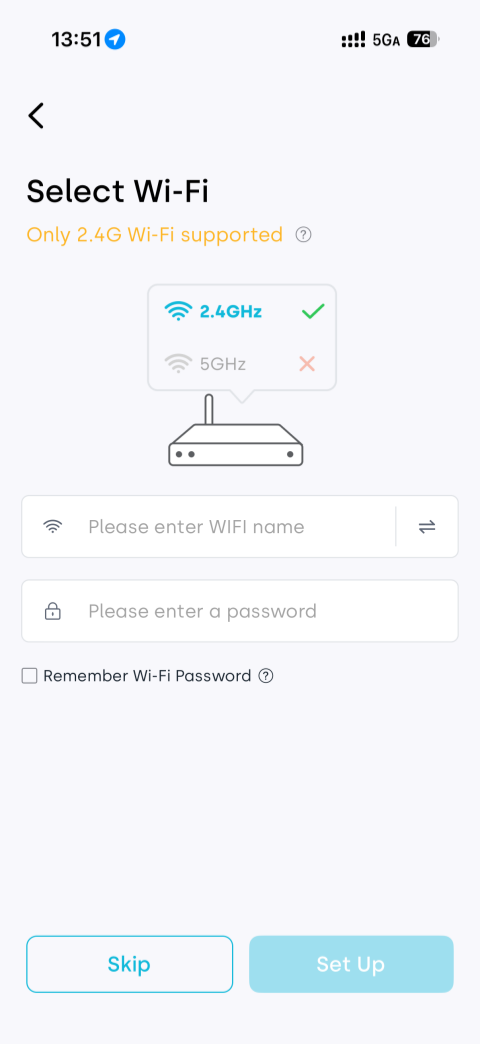
 - Enter the network configuration page. Currently, only local Web-based network configuration is supported. Refer to Gateway Settings. Tap "Skip" to skip this step.
- After the device is added successfully, you can view the following information on the device details page:
- Network connection information
- Connected sub-device list
- Basic device configuration and management options